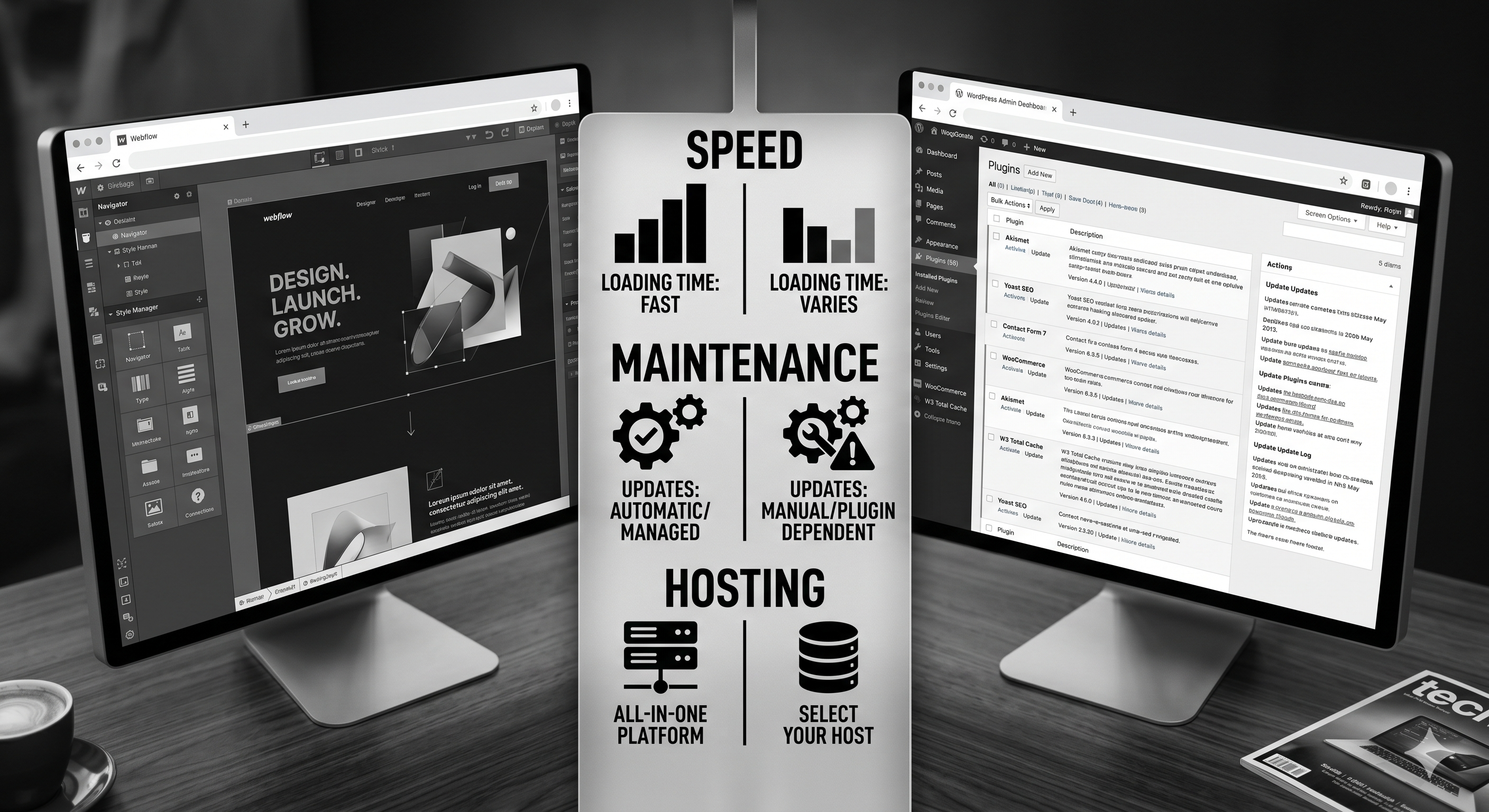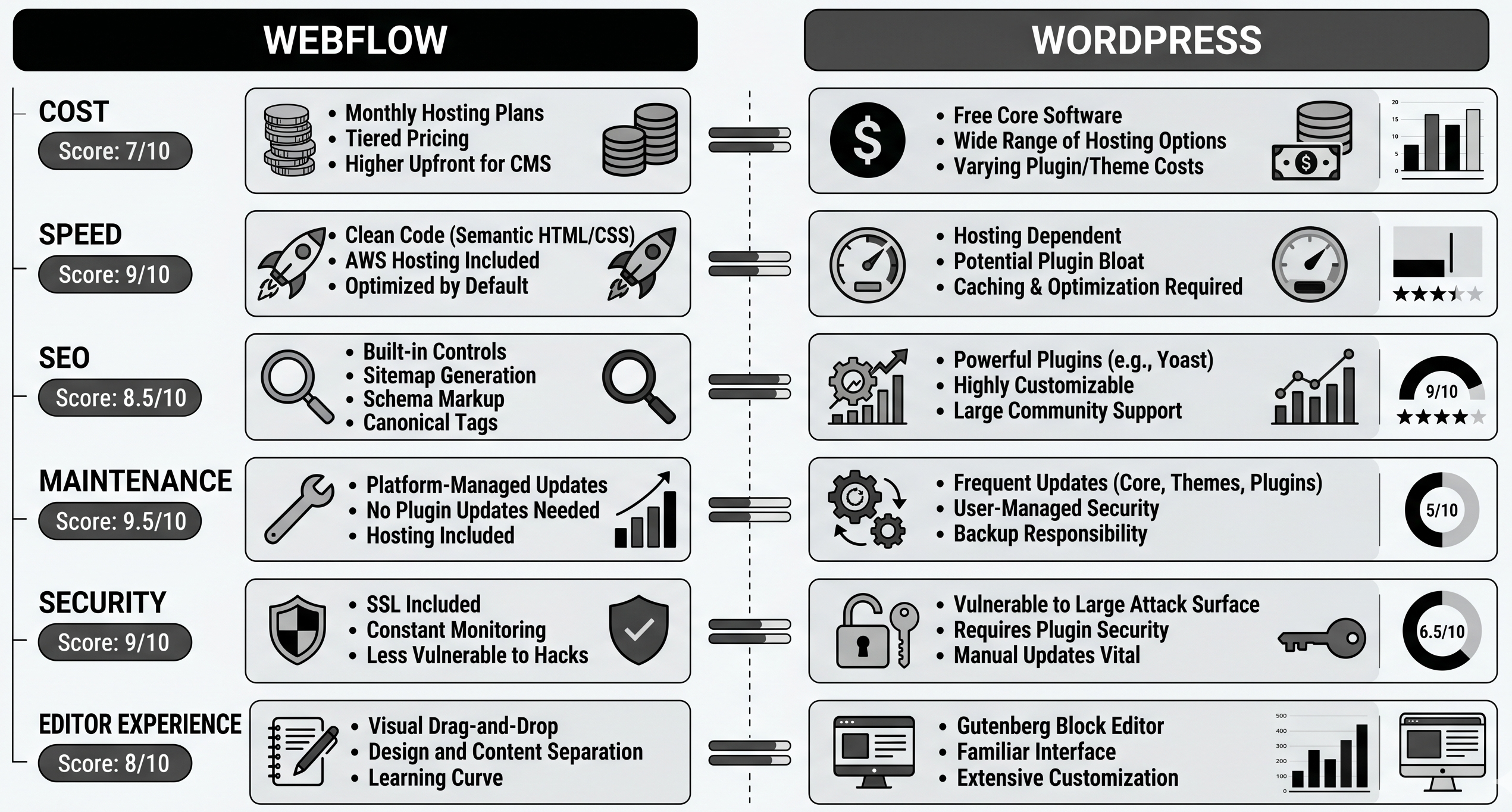
Tag Archives: wordpress

How to Migrate from WordPress to HubSpot CMS (Without Losing Traffic)

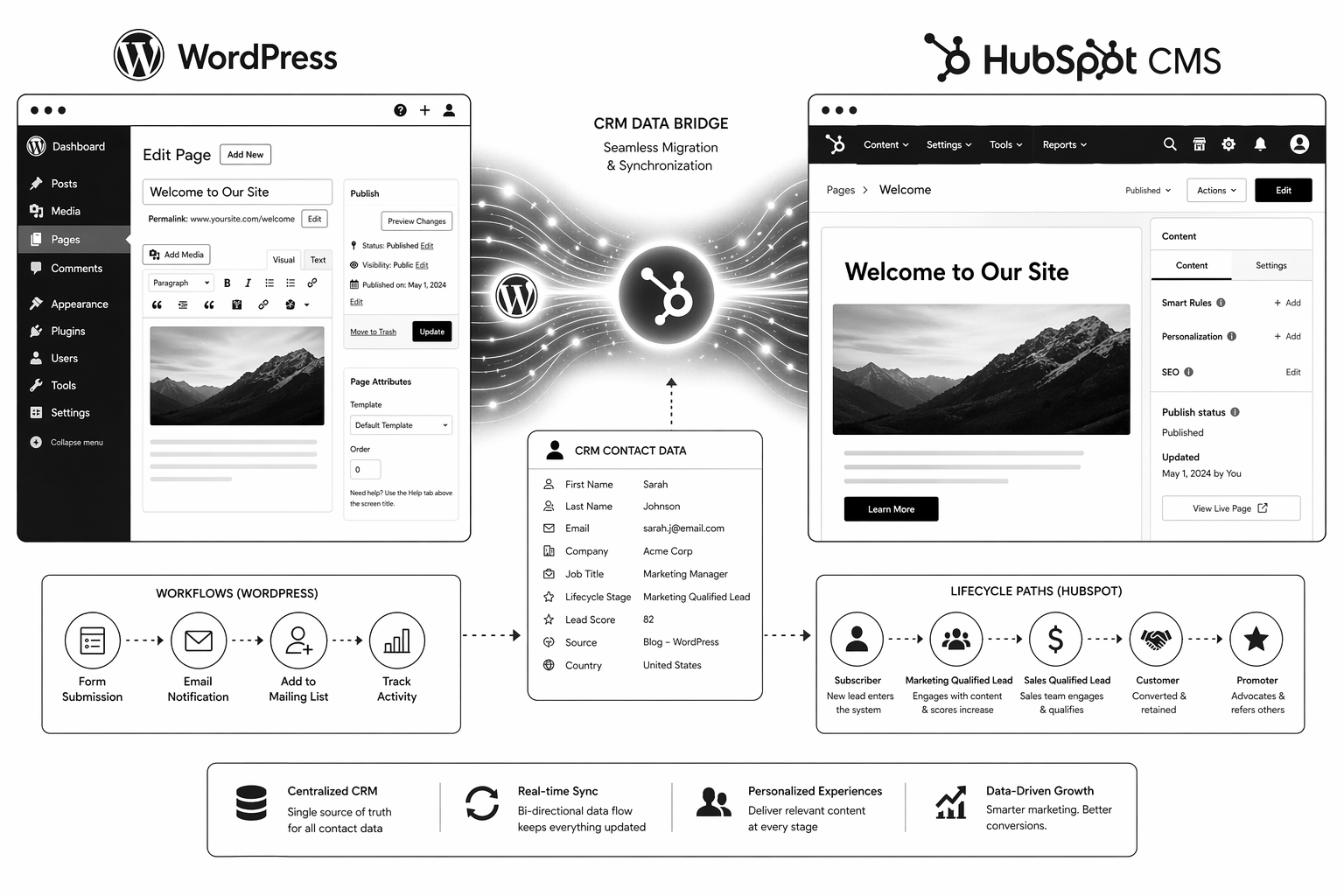
WordPress to HubSpot CMS migrations are one of the most under-scoped projects in B2B SaaS. Teams see HubSpot CMS Hub as a drop-in WordPress replacement. It’s not. It’s a fundamentally different system with different data models, different CRM integration patterns, and different SEO implications.

This guide covers realistic scope, the process that protects traffic, and where most teams underestimate complexity. Written for marketing leaders and RevOps heads planning the move.

Why WordPress to HubSpot Migrations Are Bigger Than You Think

WordPress is a content-first platform. HubSpot is a CRM-first platform that happens to have a CMS. The difference matters for:

  • Data model. HubSpot requires properties, contact records, and lifecycle mapping. WordPress is content records + optional metadata.
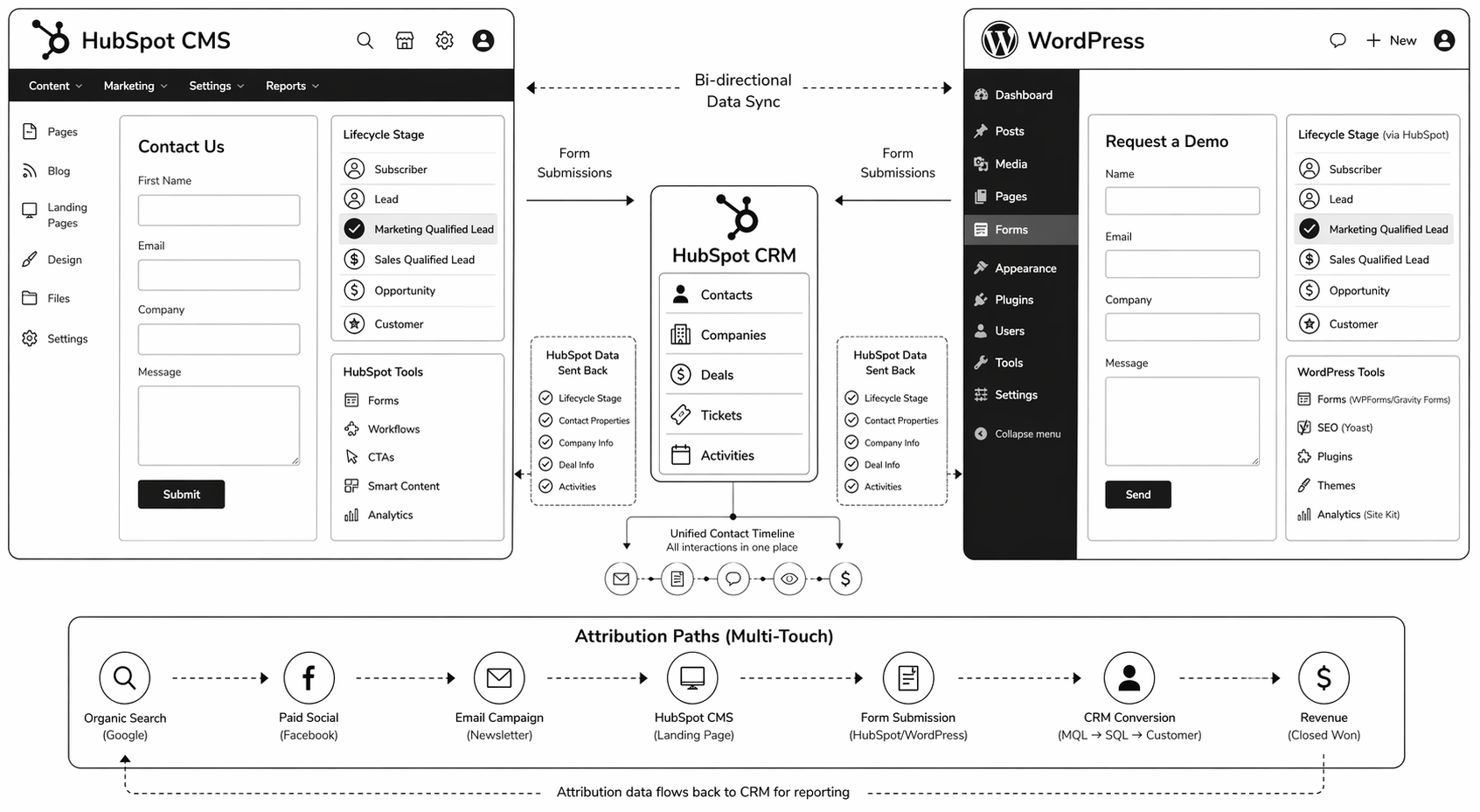
  • Form architecture. WordPress forms go to an email or third-party service. HubSpot forms feed directly into CRM. This requires property mapping.
  • CMS scale. HubSpot CMS performs well up to 500–1000 CMS items. Beyond that, editing can feel slow.
  • URL structure. URL preservation is harder on HubSpot than Webflow because the CMS model is different.
  • Team workflow. WordPress teams often use plugins and custom workflows. HubSpot mandates a specific RevOps structure.

With planning, none of these are blockers. Without planning, they compound into a multi-quarter nightmare.

Pre-Migration: The Audit Phase (Weeks 1–3)

1. Content audit. How many pages? How many blog posts? Which pages drive traffic? Which rank for keywords? Export this to a spreadsheet.

2. Current metadata audit. Export all meta titles, descriptions, and existing canonicals from WordPress. You’ll need to reapply these in HubSpot.

3. Form audit. How many forms do you have? What fields do they collect? Where do submissions go currently? This maps to HubSpot CRM property creation.

4. Integration audit. What plugins/integrations does WordPress currently connect to? Which of these are critical? Which can be replaced by HubSpot native features?

5. URL structure decision. Keep existing URL structure or restructure? URL changes cost SEO link equity. Only restructure if the benefit outweighs the cost.

Planning Phase: CRM Architecture (Weeks 4–6)

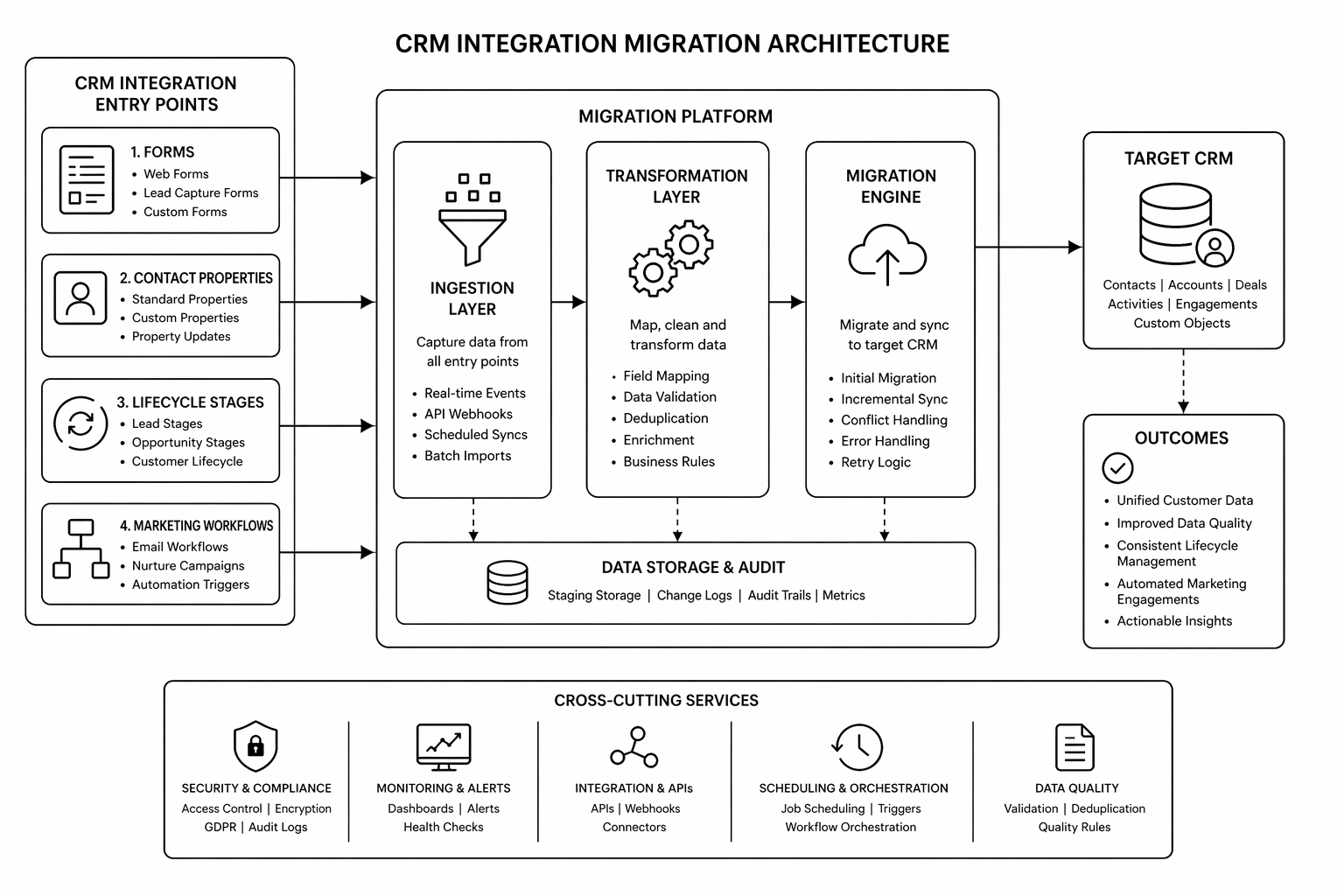
6. HubSpot property mapping. Every form field should map to a specific CRM property. Every contact data point should have a designated property. Document this before building anything in HubSpot.

7. Lifecycle model alignment. Where do leads enter the funnel? Which contacts are qualified for what? This determines workflows, smart content, and reporting.

8. HubDB schema design. Blog, case studies, integrations directory, team members — anything dynamic should use HubDB tables. Design the schema before building.

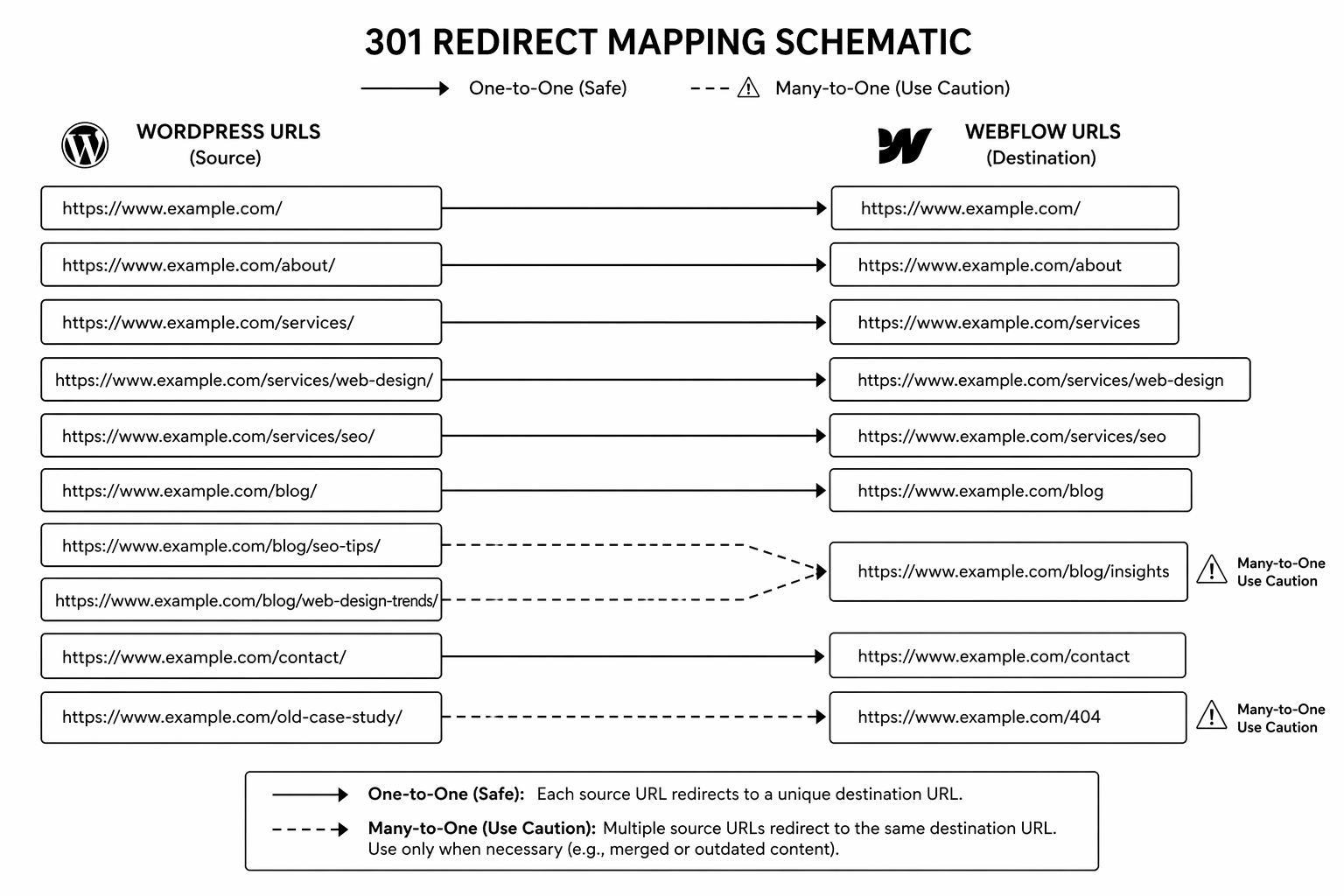
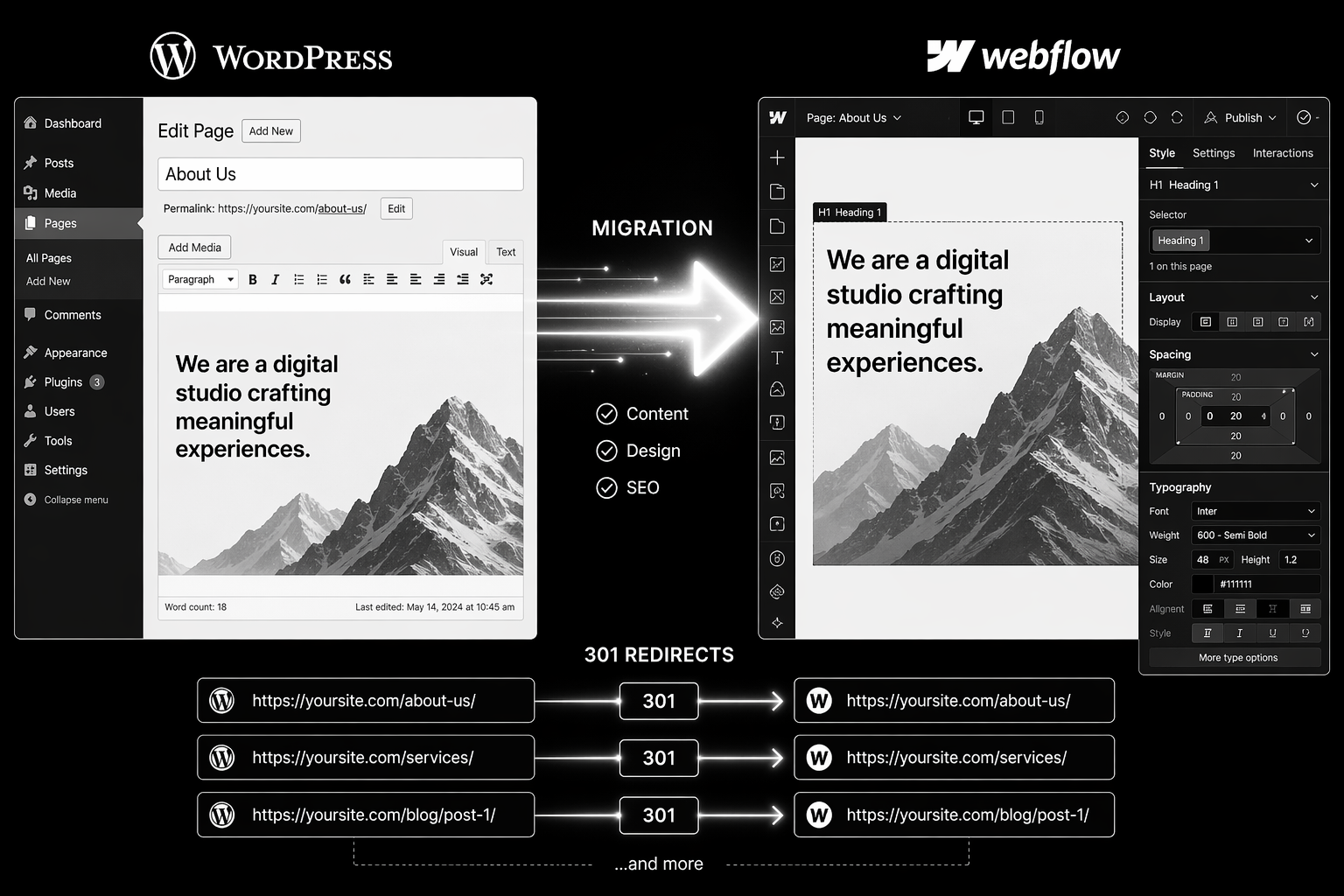
9. 301 redirect strategy. URL mapping from old WordPress URLs to new HubSpot URLs. Use one-to-one redirects. Never redirect high-traffic pages to the homepage.
Build Phase: Implementation (Weeks 7–14)

10. HubSpot theme and modules. Build the design system and reusable modules first. All pages should use these — no bespoke one-off designs.

11. Content migration. Import blog posts, pages, and assets. Use HubSpot’s content import or manual migration depending on volume. Test thoroughly.

12. Form and workflow setup. Build each form with correct property mapping. Set up workflows to fire on form submission. Test the full flow with real submissions.

13. Smart content rules. Create lifecycle-aware content variations for key pages (homepage, pricing, key solutions).

14. SEO technical setup. Meta titles and descriptions for every page. Schema markup. Canonical tags. Sitemap generation. Robots.txt configuration.

QA Phase: Pre-Launch Validation (Weeks 15–16)

15. Redirect testing. Spot-check 100+ old URLs. Verify they land on the correct new page with no chain redirects.

16. Form submission testing. Every form should post contact data correctly to CRM and trigger intended workflows.

17. Analytics and event mapping. GA4 event structure should match new page hierarchy. Test tracking on key conversion pages.

18. Mobile and browser testing. All key pages on mobile, tablet, Chrome, Safari, Firefox, Edge.

19. Lighthouse and Core Web Vitals. All green on key pages before launch.

Launch Phase (Week 17)

20. Pre-cutover. New Search Console property created, sitemap submitted, DNS cutover scheduled.

21. DNS change. Point domain to HubSpot. Ideally Tuesday or Wednesday morning.

22. Monitoring. First 48 hours: constant attention. Watch for crawl errors, 404s, traffic anomalies.

Post-Launch Phase (Weeks 18–24)

23. Traffic monitoring. Traffic dips are normal weeks 2–4. Recovery by 60–90 days is typical. If slower, audit redirects and technical setup.

24. Ranking recovery. Pages should recover original rankings. If not, check for schema breaks, meta changes, or internal linking issues.

25. CRM data quality. Audit form submissions for data anomalies or missing properties. Fix mapping issues.

Planning a WordPress to HubSpot migration? The right partner maps pre-move risk and locks architecture before building. Book a HubSpot migration audit.

Common Mistakes

1. Starting build before CRM architecture is locked. Three weeks into development, team realizes the property model is wrong. Rebuild required. Fix: spend extra time in planning phase.

2. Misaligning URL structure. Team changes URLs for “cleaner paths” without redirect strategy. Traffic tank and link equity lost. Fix: preserve old URL structure whenever possible.

3. Not testing forms before launch. Launch day, forms stop submitting. Sales team notices first. Fix: week of form testing in staging with real data.

4. Underestimating content audit. 200 pages exists in WordPress. Team assumes it can be migrated in a day. Reality: 3 weeks of property mapping, form field alignment, and data cleanup. Fix: budget time accurately.

5. Weak internal linking strategy. Pages migrated, but no updated internal linking. Blog never compounds. Fix: audit and update internal links during migration.

Also compare with HubSpot CMS vs WordPress to confirm platform fit before you start.

FAQ

How long does WordPress to HubSpot migration take?

8–16 weeks depending on content volume, complexity of CRM data model, and integration dependencies. Most migrations sit at 12 weeks.

Will I lose traffic?

A 2–4 week dip is normal. With proper redirects and content parity, most sites recover within 60–90 days. Losses beyond 30% suggest a technical issue.

Can I keep WordPress for a while and migrate gradually?

You can run both systems in parallel for 2–4 weeks during launch to catch issues. Running indefinitely creates maintenance debt and confusion for visitors.

Do I need a HubSpot-certified partner?

Not essential, but helpful. HubSpot-specialized teams understand HubDB schema design, property mapping, and workflow architecture faster than generalists.

What if my current WordPress URLs have lots of backlinks?

Preserve URLs through 301 redirects. The backlinks stay valuable when the URL redirects correctly to the topically similar new page.

Conclusion: Migration Success Requires Process, Not Heroics

WordPress to HubSpot migrations fail when teams skip planning or underestimate scope. They succeed when the team spends the first third of the project on architecture and redirect planning, not on building.

Use this framework. Your margins on the project depend on it.

Need guidance through the process? Our HubSpot development team has migrated 30+ B2B SaaS sites. Book your migration audit.

📥 Free resource: The WordPress to HubSpot Migration Playbook — a detailed roadmap covering architecture decisions, CRM schema design, and launch monitoring.
That's enough scrolling for now - chat to a HubSpot expert today!
Contact Us
How to Migrate from WordPress to Webflow Without Losing SEO

WordPress to Webflow migrations are one of the highest-risk platform moves. Done badly, a team can lose 30–50% of organic traffic inside two weeks. Done right, sites often recover and exceed prior traffic within 90 days.

This guide walks through the exact process that protects rankings. It’s written for CMOs, founders, and technical teams planning the move. Follow this step-by-step and you will preserve your organic equity.

Why WordPress to Webflow Migrations Fail

The failure pattern is always the same:

  • Team builds a beautiful Webflow site.
  • Launches without 301 redirect strategy.
  • Old WordPress URLs return 404s.
  • Backlinks point to dead pages.
  • Organic traffic collapses.
  • Team spends two months firefighting redirects and re-submitting to Search Console.

This is completely avoidable with planning.

The Step-by-Step Migration Process

Phase 1: Pre-Launch Audit (Weeks 1–2)

1. Full URL inventory. Export from Screaming Frog, Google Search Console, and your WordPress sitemap. Every URL currently indexed matters.

2. Traffic report by URL. Which pages drive the most organic traffic? Which rank for valuable keywords? Which have backlinks? Prioritise these for one-to-one redirects.

3. 301 redirect map. Create a spreadsheet with old WordPress URL → new Webflow URL. Maintain keyword alignment. Never redirect high-traffic pages to the homepage.

4. Content parity check. Every page that drives traffic should exist in Webflow with equal or better content. If a page is being cut, it needs a topical redirect match, not a 404.

Phase 2: Technical Setup (Weeks 3–4)

5. Webflow build staging. Build the full site on Webflow, including 301 redirects in the hosting settings or via a reverse proxy layer.

6. Meta, schema, and canonicals. Verify every page has correct meta title, meta description, canonical tag, and schema markup before going live.

7. Staging QA. Test redirect flows. Verify all inbound links still work. Check Core Web Vitals on key pages.

Phase 3: Launch (Week 5)

8. Pre-cutover checklist.

  • DNS change planned for Tuesday or Wednesday (off-peak).
  • Full team on standby for 48 hours.
  • Search Console new property ready and sitemap pre-submitted.
  • Analytics events mapped to new page structure.

9. DNS cutover. Point domain to Webflow. Monitor for 4–6 hours.

10. Redirect testing. Spot-check 50+ old URLs. Verify they land on the correct new page.

Phase 4: Post-Launch Monitoring (Weeks 6–12)

11. First 48 hours. Monitor Search Console for crawl errors. Fix any broken redirects immediately.

12. Weeks 2–4: Traffic monitoring. Traffic dips 2–4 weeks post-launch are normal. If a major drop happens, check:

  • Are high-traffic pages redirecting correctly?
  • Have schema errors appeared?
  • Has robots.txt blocked Googlebot?
  • Are Core Web Vitals still green?

13. Weeks 4–12: Ranking recovery. Sites usually recover pre-launch rankings within 60–90 days. If recovery stalls, audit internal linking and content keyword density.

Planning a WordPress to Webflow move? Our migration specialists run pre-move audits to identify risk areas and lock redirect strategy. Book a migration consultation.

Common Mistakes to Avoid

1. Chain redirects. WordPress → staging → Webflow adds redirect hops and loses link equity. Use one-hop redirects only (old URL → new URL, full stop).

2. Changing URL structure. “We want cleaner URLs on Webflow.” If the old URLs have backlinks, structure changes tank rankings. Preserve URL format where possible.

3. Missing redirects on old pages. One forgotten page generating 500 monthly visits now returns 404. That’s lost traffic and link equity. Redirect everything with traffic.

4. No 301 monitoring after launch. First month is critical. Automate Slack alerts when 404s spike.

5. Launching on a Friday. Something breaks, team is unavailable. Always launch Tuesday–Thursday.

For broader platform decisions before migrating, see Webflow vs WordPress comparison.

FAQ

How long does WordPress to Webflow migration take?

4–6 weeks for straightforward builds under 100 URLs. 10–16 weeks for complex sites with 300+ URLs and deep integrations.

Will I lose traffic when I migrate?

A 2–4 week traffic dip is normal. Most sites recover fully within 60–90 days. If the dip exceeds 30%, something in the redirect strategy or technical setup is broken.

Can I migrate content manually?

You can, but it’s slow and error-prone for 100+ pages. Tools like All in One WP Migration or database exports are faster. Webflow has import tooling to accelerate content bulk uploads.

Do I need 301 redirects or can I use meta refresh?

301 redirects. Meta refresh is an outdated tactic and doesn’t pass link equity to search engines.

Should I migrate all 500 old URLs or just high-traffic pages?

Redirect everything with traffic or backlinks. Orphan pages without traffic can return 404s. Low-traffic pages: check if they drive even 10 monthly visits — if yes, redirect.

Conclusion: Migration Success Requires Planning, Not Luck

WordPress to Webflow migrations succeed when the team invests in redirect mapping and technical SEO before launch, not after. Most failures come from teams rushing to launch without this work.

If you have a WordPress site with serious organic traffic, this checklist is not optional — it’s required. Use it.

Need specialist support through the process? Our Webflow migration team has moved 50+ sites without losing meaningful traffic. Book your migration audit.

📥 Free resource: The WordPress to Webflow Migration Checklist — a detailed 35-point checklist covering pre-move audit, redirect strategy, and post-launch monitoring.

That's enough scrolling for now - chat to a HubSpot expert today!
Contact Us
HubSpot CMS vs WordPress: Which Is Better for B2B SaaS in 2026?

The HubSpot CMS vs WordPress decision is one of the highest-leverage choices a B2B SaaS marketing team makes. It affects content velocity, CRM data quality, attribution confidence, and how quickly pipeline insights can turn into page-level changes.

Most comparisons treat this like a template battle. It is not. In 2026, this is a systems question: do you want a tightly integrated revenue platform, or a flexible CMS stack you can assemble yourself?

The Core Difference

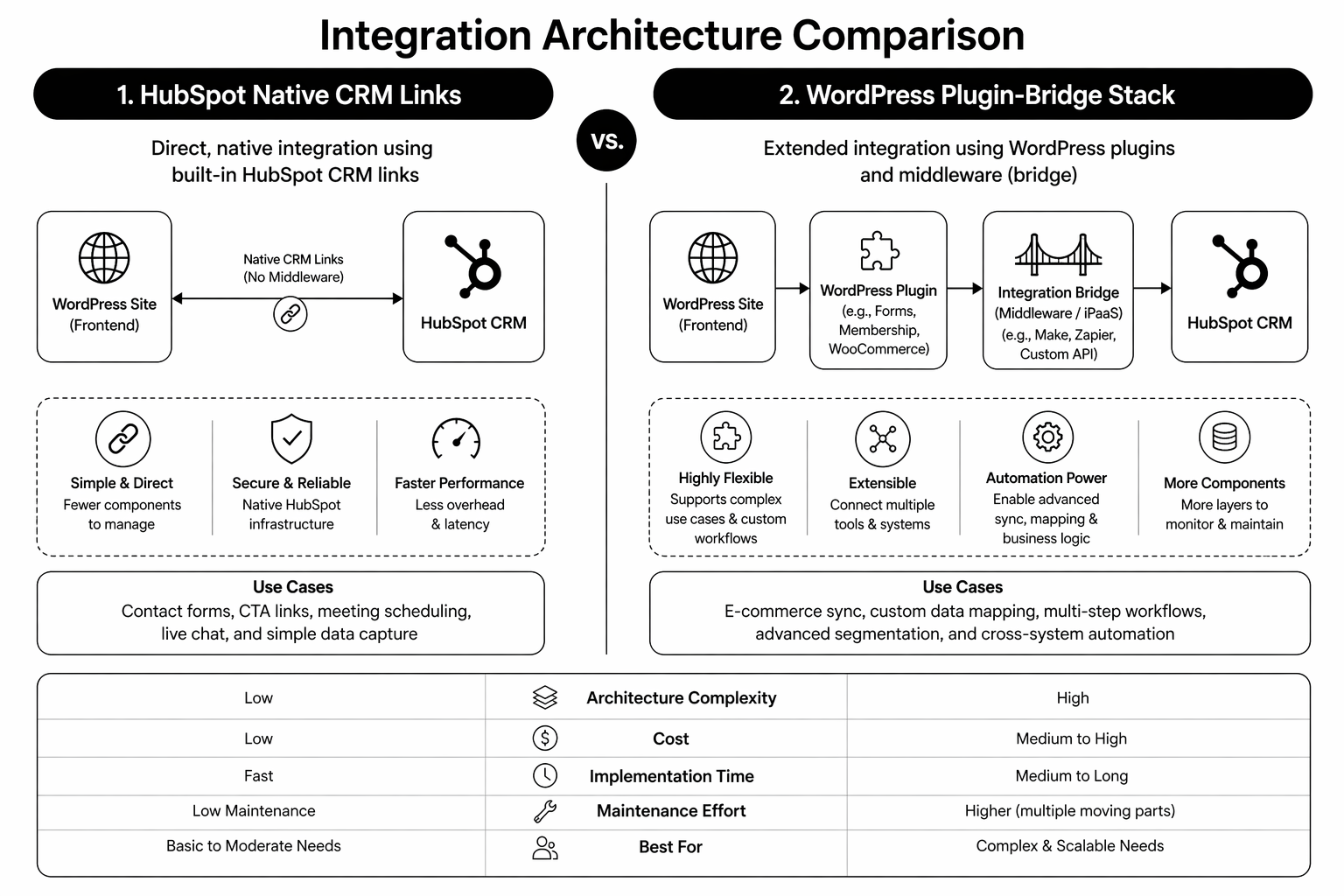
WordPress is a highly extensible CMS that can connect to almost anything. HubSpot CMS is a CRM-native CMS designed to work as part of one growth system. WordPress gives freedom. HubSpot gives alignment.

  • WordPress strength: ecosystem breadth and custom flexibility.
  • HubSpot strength: lifecycle-aware content, native attribution, and cleaner operations.
  • B2B SaaS reality: most teams need execution speed and data consistency more than endless plugin optionality.

Pricing and TCO: What You Actually Pay

WordPress usually looks cheaper on paper: low hosting costs, open-source core, low-cost themes. But B2B SaaS teams often add premium plugins, analytics layers, form tools, ABM tooling, and maintenance retainers that increase total cost over time.

HubSpot CMS has a higher upfront platform cost but reduces tool sprawl and integration overhead if you are already inside HubSpot for CRM and marketing automation. The cost is concentrated, but execution is often cleaner.

If you need exact tier-level breakdowns, use our HubSpot CMS Hub pricing guide alongside this comparison.

Marketing and Sales Alignment

This is where HubSpot CMS vs WordPress becomes less debatable for many SaaS teams. HubSpot CMS is built for closed-loop operations. Form activity, page engagement, lifecycle updates, and campaign attribution live in one record.

WordPress can replicate this with integrations, but each additional connector adds failure points. If marketing and sales alignment is already fragile, a stack that needs constant integration maintenance usually makes it worse.

SEO and Content Performance

Both platforms can rank very well. WordPress has stronger plugin-level SEO tooling variety. HubSpot offers robust built-in SEO controls and cleaner operational consistency for content teams that do not want to manage plugin complexity.

If your team publishes a lot, consistency matters more than feature depth. A platform your team can use correctly every week tends to outperform a platform with more theoretical power.

When HubSpot CMS Is Usually Better

  • You already use HubSpot CRM and Marketing Hub extensively.
  • You need lifecycle-aware CTAs and smart content without custom engineering.
  • You need clear attribution tied directly to contact and pipeline data.
  • Your team wants fewer tools, fewer integrations, and faster execution cycles.

When WordPress Is Usually Better

  • You require highly custom backend workflows and niche plugin logic.
  • You have strong internal technical ownership for long-term maintenance.
  • Your CRM strategy is not HubSpot-centric.
  • You prefer stack flexibility over native system coherence.

Planning a CMS move this year? Our team maps migration scope, tracking continuity, and implementation risk before platform decisions are final. Book a HubSpot migration audit.

Migration Considerations

Moving from WordPress to HubSpot is usually less about design and more about data model decisions: URL structure, HubDB schema, form-to-property mapping, and attribution continuity. Teams that skip this prep often preserve page design while breaking pipeline reporting.

Use a structured checklist before any move. Our WordPress to HubSpot migration guide walks through the implementation order.

Also compare strategic overlap with Webflow vs WordPress if you’re deciding across multiple CMS options.

FAQ

Is HubSpot CMS better than WordPress for B2B SaaS?

For CRM-driven B2B SaaS teams, often yes. The native alignment between site, CRM, and attribution usually creates faster execution and cleaner reporting.

Is HubSpot CMS more expensive?

Upfront platform cost is higher. Total cost can be competitive when you account for plugin spend, integration maintenance, and operational drag in WordPress stacks.

Can WordPress match HubSpot functionality?

Technically yes, with the right plugins and integrations. The trade-off is complexity and ongoing maintenance overhead.

Should early-stage SaaS choose WordPress or HubSpot CMS?

If budget is tight and CRM complexity is low, WordPress can be fine. If the team is already committed to HubSpot and needs fast RevOps alignment, HubSpot CMS can be the better strategic choice earlier.

How long does WordPress to HubSpot migration take?

Most B2B SaaS migrations run 8 to 16 weeks depending on content volume, CRM schema complexity, and integration dependencies.

Conclusion: Choose Based on System Fit, Not Feature Lists

The right answer in HubSpot CMS vs WordPress is the platform your team can run as a repeatable growth system. For many B2B SaaS companies in 2026, that means HubSpot CMS because CRM and content are already inseparable. For others, WordPress remains the right fit where flexibility is genuinely required.

If your decision criteria are still fuzzy, start with pipeline requirements first, then pick the CMS that supports them with the least operational friction.

Need an external view before migrating? Our HubSpot development specialists can map platform fit and implementation risk. Book your audit.

📥 Free resource: The HubSpot vs WordPress TCO Calculator — a practical worksheet to model software, maintenance, and team-time cost over 36 months.

That's enough scrolling for now - chat to a HubSpot expert today!
Contact Us
Webflow vs WordPress: The Honest 2026 Comparison

The Webflow vs WordPress debate is usually framed as “visual builder versus open-source CMS.” That’s too shallow to make a six-figure platform decision. In 2026, the real question is operational: which platform helps your team ship faster, rank better, and convert more without creating long-term maintenance debt?

This guide is for founders, CMOs, and growth leads comparing both platforms for serious marketing sites. We’ll break down cost, performance, SEO, content operations, and scalability with practical trade-offs. If you already suspect your current stack is slowing your team down, this will give you a clean answer.

Webflow vs WordPress in One Sentence

Webflow is opinionated, faster to manage, and lower maintenance. WordPress is more flexible, more extensible, and easier to overcomplicate. Which one wins depends less on features and more on your operating model.

  • Pick Webflow if speed, design consistency, and low technical overhead matter most.
  • Pick WordPress if you need heavy plugin-specific functionality or bespoke backend workflows.
  • Avoid both mistakes: picking WordPress “because it’s standard” or picking Webflow “because it looks modern” without a content and growth plan.

Performance: Which Platform Is Faster?

On default builds, Webflow usually wins. It ships on a managed infrastructure with CDN delivery, sensible code output, and fewer moving parts. WordPress performance can match it, but only with disciplined hosting, caching, image optimisation, and plugin control.

In practice, most mid-market teams don’t maintain that discipline over 24 months. They add plugins, scripts, and quick fixes until Core Web Vitals degrade. That’s why many companies move to Webflow after a redesign cycle that got slower every quarter.

If performance and marketing velocity are priorities, this is why many teams move from WordPress to Webflow using a structured migration process rather than another WordPress rebuild.

SEO: Is WordPress Better for Rankings?

Not inherently. WordPress has excellent SEO tooling, but tooling is not execution. Both platforms can rank extremely well when architecture, internal linking, technical hygiene, and publishing quality are strong.

Where WordPress can still shine is edge-case control for custom technical SEO requirements. Where Webflow shines is reducing the number of ways teams accidentally break SEO with plugin conflicts, theme updates, or bloated page builders.

If your team publishes consistently and wants fewer breakpoints, Webflow development often compounds faster over time.

Total Cost of Ownership: The Real Difference

The biggest misunderstanding in the Webflow vs WordPress conversation is cost. WordPress often looks cheaper in year one. By year two, maintenance and troubleshooting erase most of that gap for growth-stage teams.

WordPress cost layers: hosting, premium theme, plugin subscriptions, security tooling, maintenance retainers, and emergency fixes. Webflow cost layers: platform plan, occasional custom code, and lower maintenance overhead.

Rule of thumb: if your site is a core growth channel and your team publishes weekly, Webflow usually becomes cheaper to operate by months 12 to 18. If your site is low-change and plugin-heavy, WordPress can remain cost-effective.

Unsure which platform actually fits your team? We run practical platform reviews for SaaS and service businesses. Book a migration consultation and we’ll map scope, risk, and a realistic cost model before you commit.

Security and Maintenance Overhead

Webflow’s managed environment removes most routine security tasks from your team. WordPress gives you control, but that control comes with patch management, plugin audits, and ongoing monitoring responsibility.

Neither is insecure by default. The difference is responsibility distribution. If your team lacks in-house platform operations, managed systems reduce risk.

Content Operations and Team Workflow

Webflow’s editor is cleaner for non-technical teams and enforces stronger design-system consistency. WordPress editor flexibility is powerful but varies heavily depending on theme, builder, and plugin stack.

If your marketing team wants to publish without engineering tickets, Webflow generally creates less friction. If your content model relies on highly custom editorial workflows, WordPress can still be the better operational choice.

For B2B teams evaluating CRM-native alternatives, compare this with HubSpot CMS vs WordPress before finalising your CMS decision.

When Webflow Is the Better Choice

  • You want a fast marketing site with low maintenance overhead.
  • Your team needs visual editing with strong brand consistency.
  • You care about speed-to-launch and frequent iteration.
  • You do not need complex plugin-dependent backend logic.

When WordPress Is the Better Choice

  • You need deep plugin ecosystem access for niche requirements.
  • You already have strong in-house WordPress technical ownership.
  • Your content operation depends on custom backend workflows.
  • You can enforce strict performance and security governance over time.

FAQ

Is Webflow better than WordPress for SEO?

Neither is automatically better. Both can rank well. Webflow often wins operationally because it’s harder for teams to degrade performance and technical hygiene over time.

Is Webflow more expensive than WordPress?

Upfront, sometimes yes. Over 24 months, often no, because maintenance and plugin overhead in WordPress grows faster than expected.

Can I migrate from WordPress to Webflow without losing traffic?

Yes, if you run URL inventory, one-to-one redirects, and content parity. Most losses come from poor migration planning, not platform choice.

Who should stay on WordPress in 2026?

Teams with genuine plugin-heavy requirements and strong internal ownership. If you’re mostly publishing marketing content, Webflow is often simpler and faster.

Should agencies still build on WordPress?

Yes for specific use cases, but many agencies now deliver faster and with less support burden on Webflow. Platform choice should follow client operations, not agency habit.

Conclusion: Pick the Platform Your Team Can Operate Well

Webflow vs WordPress is not about which platform has more features on paper. It’s about which one your team can run consistently for the next three years without performance decay, publishing friction, or maintenance drag.

If your goal is a faster, cleaner growth engine, Webflow usually wins. If your goal is maximum extensibility and you can support the overhead, WordPress still has a place. The wrong answer is making the decision on brand familiarity alone.

Need a neutral recommendation before you choose? Our Webflow agency team can map whether Webflow is a fit and where WordPress still makes more sense. Book a consultation.

📥 Free resource: The Platform Selection Decision Matrix — a practical scoring sheet to choose between Webflow, WordPress, and other CMS options by team structure, growth goals, and total cost.

That's enough scrolling for now - chat to a HubSpot expert today!
Contact Us
13 Points to Consider When Choosing a WordPress Theme

Introduction

When creating a website using WordPress, one of the most critical decisions you’ll make is choosing the right theme. With thousands of options available, it can be overwhelming to select the best one that suits your needs. In this article, we’ll discuss 13 Points to Consider When Choosing a WordPress Theme to ensure your website looks stunning, functions smoothly, and meets your requirements.

WordPress logo

1. Why the Right WordPress Theme Matters

Selecting the right WordPress theme is crucial because it sets the visual and functional foundation of your website. A well-designed theme enhances the user experience, attracts visitors, and represents your brand effectively. It also plays a vital role in search engine optimization, website speed, and security.

2. Consider the Purpose of Your Website

Before choosing a theme, define the purpose of your website. Is it an e-commerce site, a blog, a portfolio, or a business website? Different purposes require different layouts and functionalities. Understanding your website’s objectives will help you narrow down the suitable theme options.

3. Ensure Responsive Design

In today’s mobile-driven world, having a responsive website is a must. Ensure that the theme you choose adapts seamlessly to various screen sizes and devices. This enhances user experience and also helps with SEO, as search engines favor mobile-friendly websites.

Supercharge your WordPress website with InboundWebHub!

4. Check Browser Compatibility

Your website will be accessed by users on various browsers. Test the theme on different browsers to ensure it displays correctly and functions well across all of them. A theme that works well on one browser but breaks on another can harm your website’s credibility.

5. Evaluate Page Load Speed

Website speed is a critical factor affecting user experience and search engine rankings. Choose a lightweight and well-coded theme that ensures fast page load times. Avoid themes with excessive animations or features that can slow down your site.

6. Look for Customization Options

Every website is unique, so choose a theme that offers sufficient customization options. Check if the theme allows you to modify layouts, colors, fonts, and other elements without the need for complex coding. A highly customizable theme gives you the flexibility to design your site according to your vision.

7. Check Theme Updates and Support

Regular theme updates are essential for security and compatibility with the latest WordPress version. Ensure the theme you select receives frequent updates and has an active support team to assist you in case of any issues.

Lets Discuss

contact us

8. Consider SEO Friendliness

An SEO-friendly theme can positively impact your website’s visibility on search engines. Look for themes that are optimized for SEO, including proper heading structure, clean code, and fast loading times.

9. Examine Security Features

Website security is paramount to protect your data and your visitors’ information. Choose a theme from reputable sources that follow the best security practices and keep your website safe from potential threats.

10. Analyze Theme Reviews and Ratings

Before finalizing a theme, read reviews and ratings from other users. This will give you insights into their experiences and help you identify any potential drawbacks or issues with the theme. Choose themes with positive feedback and high ratings.

Get a website that wows! Contact InboundWebHub for expert WordPress development.

11. Choose a Theme with Good Documentation

Clear and comprehensive documentation is essential when working with a WordPress theme. Check if the theme provides detailed instructions on installation, setup, and customization. Good documentation saves time and prevents unnecessary frustration during the website-building process.

12. Check for Plugin Compatibility

Plugins add functionality to your WordPress site. Ensure that the theme you choose is compatible with popular plugins you may need, such as contact forms, SEO optimization, caching, or e-commerce plugins. Incompatibility between the theme and essential plugins can limit your website’s capabilities.

13. Evaluate Theme Pricing

While there are many free WordPress themes available, premium themes often offer additional features, updates, and support. Consider your budget and weigh the benefits of free themes versus paid options. Remember that investing in a premium theme can provide long-term benefits and a more professional appearance.

Conclusion

Choosing the right WordPress theme is a vital step in creating a successful website. By considering the 13 points discussed in this article, you can make an informed decision and select a theme that aligns with your goals, enhances user experience, and provides the necessary features and functionalities. Remember to thoroughly research and test themes before making your final choice.

Lets Discuss

contact us

FAQs

1. Can I change my WordPress theme after creating my website?

Yes, you can change your WordPress theme at any time. However, it’s recommended to test the new theme on a staging environment and make necessary adjustments to ensure a smooth transition.

2. Are all WordPress themes mobile-friendly?

No, not all WordPress themes are mobile-friendly. It’s essential to choose a theme that explicitly mentions responsive design or mobile optimization.

3. Can I customize the appearance of my WordPress theme?

Yes, most WordPress themes offer customization options. You can modify colors, fonts, layouts, and other elements using the theme’s built-in customization features or additional plugins.

4. Are premium WordPress themes worth the investment?

Premium WordPress themes often offer advanced features, dedicated support, and regular updates. If you have specific requirements and want a professional-looking website, investing in a premium theme can be worthwhile.

5. What should I do if I encounter issues with my WordPress theme?

If you face issues with your WordPress theme, first check the theme’s documentation or support forums for possible solutions. If you can’t resolve the problem, reach out to the theme’s support team for assistance.


That's enough scrolling for now - chat to a HubSpot expert today!
Contact Us