
 Website Designing
 Web Development
 Mobile Applications
 Marketing
 CMS & Ecommerce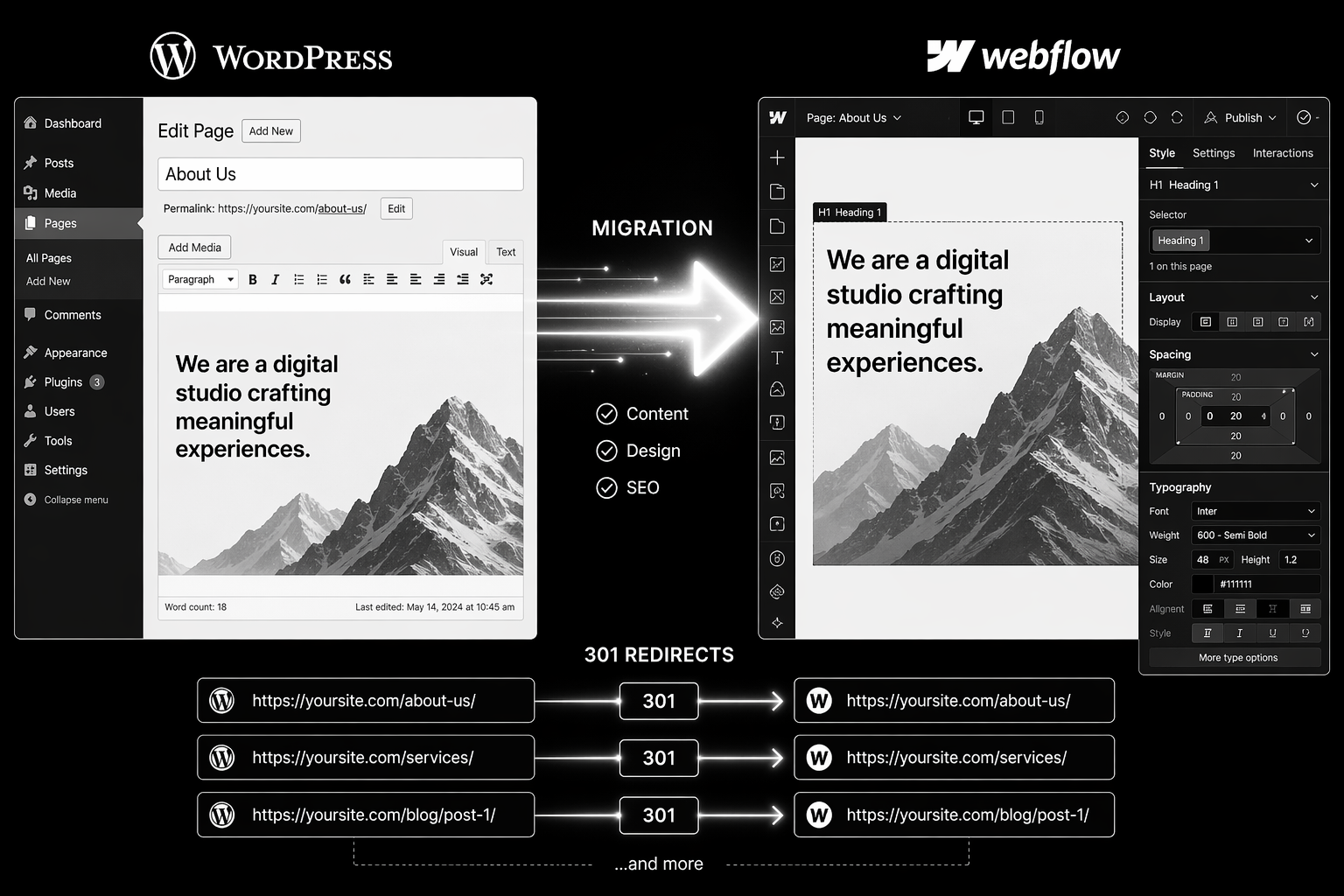
Table of Contents
WordPress to Webflow migrations are one of the highest-risk platform moves. Done badly, a team can lose 30–50% of organic traffic inside two weeks. Done right, sites often recover and exceed prior traffic within 90 days.
This guide walks through the exact process that protects rankings. It’s written for CMOs, founders, and technical teams planning the move. Follow this step-by-step and you will preserve your organic equity.
Why WordPress to Webflow Migrations Fail
The failure pattern is always the same:
- Team builds a beautiful Webflow site.
- Launches without 301 redirect strategy.
- Old WordPress URLs return 404s.
- Backlinks point to dead pages.
- Organic traffic collapses.
- Team spends two months firefighting redirects and re-submitting to Search Console.
This is completely avoidable with planning.
The Step-by-Step Migration Process
Phase 1: Pre-Launch Audit (Weeks 1–2)
1. Full URL inventory. Export from Screaming Frog, Google Search Console, and your WordPress sitemap. Every URL currently indexed matters.
2. Traffic report by URL. Which pages drive the most organic traffic? Which rank for valuable keywords? Which have backlinks? Prioritise these for one-to-one redirects.
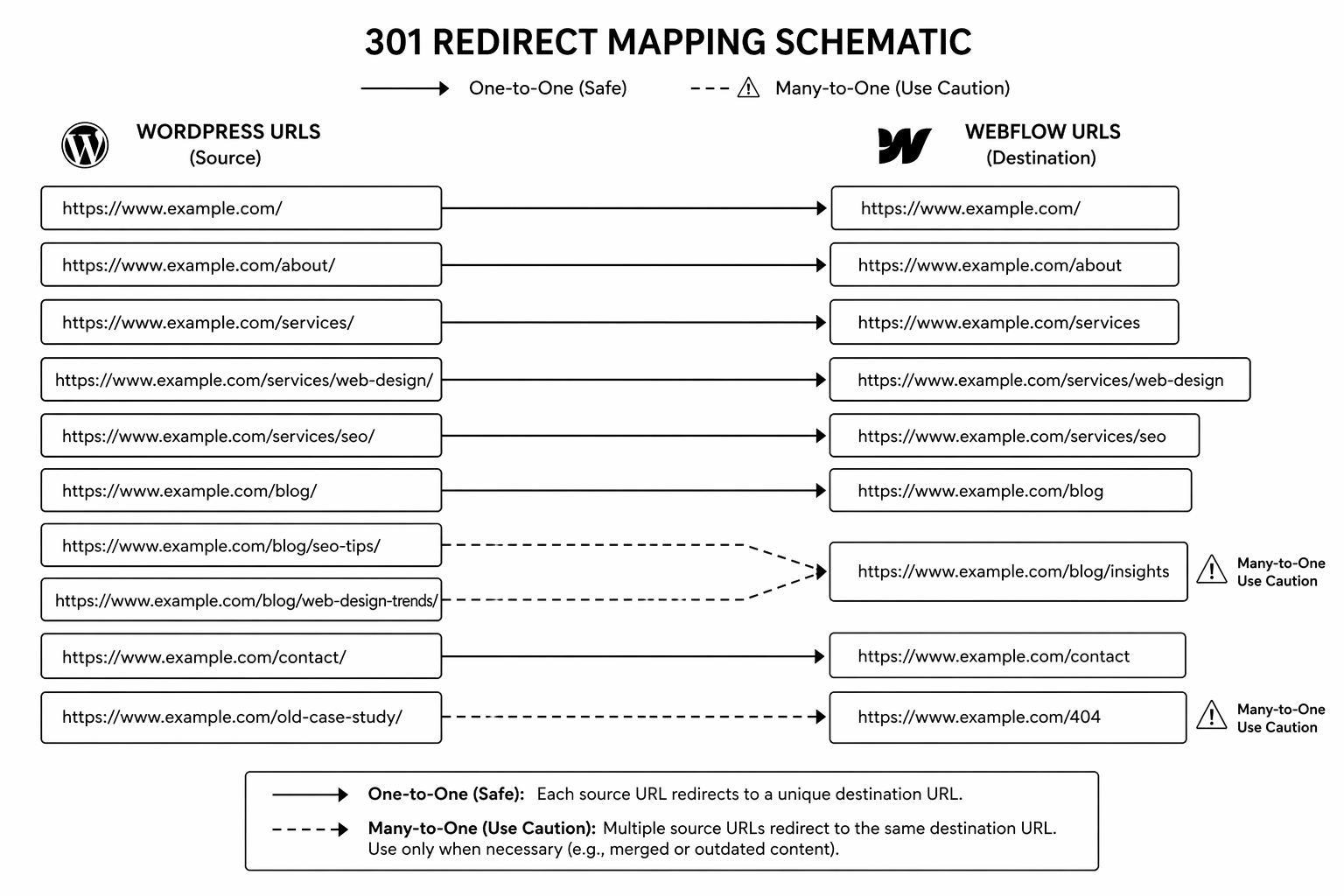
3. 301 redirect map. Create a spreadsheet with old WordPress URL → new Webflow URL. Maintain keyword alignment. Never redirect high-traffic pages to the homepage.
4. Content parity check. Every page that drives traffic should exist in Webflow with equal or better content. If a page is being cut, it needs a topical redirect match, not a 404.
Phase 2: Technical Setup (Weeks 3–4)
5. Webflow build staging. Build the full site on Webflow, including 301 redirects in the hosting settings or via a reverse proxy layer.
6. Meta, schema, and canonicals. Verify every page has correct meta title, meta description, canonical tag, and schema markup before going live.
7. Staging QA. Test redirect flows. Verify all inbound links still work. Check Core Web Vitals on key pages.
Phase 3: Launch (Week 5)
8. Pre-cutover checklist.
- DNS change planned for Tuesday or Wednesday (off-peak).
- Full team on standby for 48 hours.
- Search Console new property ready and sitemap pre-submitted.
- Analytics events mapped to new page structure.
9. DNS cutover. Point domain to Webflow. Monitor for 4–6 hours.
10. Redirect testing. Spot-check 50+ old URLs. Verify they land on the correct new page.
Phase 4: Post-Launch Monitoring (Weeks 6–12)
11. First 48 hours. Monitor Search Console for crawl errors. Fix any broken redirects immediately.
12. Weeks 2–4: Traffic monitoring. Traffic dips 2–4 weeks post-launch are normal. If a major drop happens, check:
- Are high-traffic pages redirecting correctly?
- Have schema errors appeared?
- Has robots.txt blocked Googlebot?
- Are Core Web Vitals still green?
13. Weeks 4–12: Ranking recovery. Sites usually recover pre-launch rankings within 60–90 days. If recovery stalls, audit internal linking and content keyword density.
Planning a WordPress to Webflow move? Our migration specialists run pre-move audits to identify risk areas and lock redirect strategy. Book a migration consultation.
Common Mistakes to Avoid
1. Chain redirects. WordPress → staging → Webflow adds redirect hops and loses link equity. Use one-hop redirects only (old URL → new URL, full stop).
2. Changing URL structure. “We want cleaner URLs on Webflow.” If the old URLs have backlinks, structure changes tank rankings. Preserve URL format where possible.
3. Missing redirects on old pages. One forgotten page generating 500 monthly visits now returns 404. That’s lost traffic and link equity. Redirect everything with traffic.
4. No 301 monitoring after launch. First month is critical. Automate Slack alerts when 404s spike.
5. Launching on a Friday. Something breaks, team is unavailable. Always launch Tuesday–Thursday.
For broader platform decisions before migrating, see Webflow vs WordPress comparison.
FAQ
How long does WordPress to Webflow migration take?
4–6 weeks for straightforward builds under 100 URLs. 10–16 weeks for complex sites with 300+ URLs and deep integrations.
Will I lose traffic when I migrate?
A 2–4 week traffic dip is normal. Most sites recover fully within 60–90 days. If the dip exceeds 30%, something in the redirect strategy or technical setup is broken.
Can I migrate content manually?
You can, but it’s slow and error-prone for 100+ pages. Tools like All in One WP Migration or database exports are faster. Webflow has import tooling to accelerate content bulk uploads.
Do I need 301 redirects or can I use meta refresh?
301 redirects. Meta refresh is an outdated tactic and doesn’t pass link equity to search engines.
Should I migrate all 500 old URLs or just high-traffic pages?
Redirect everything with traffic or backlinks. Orphan pages without traffic can return 404s. Low-traffic pages: check if they drive even 10 monthly visits — if yes, redirect.
Conclusion: Migration Success Requires Planning, Not Luck
WordPress to Webflow migrations succeed when the team invests in redirect mapping and technical SEO before launch, not after. Most failures come from teams rushing to launch without this work.
If you have a WordPress site with serious organic traffic, this checklist is not optional — it’s required. Use it.
Need specialist support through the process? Our Webflow migration team has moved 50+ sites without losing meaningful traffic. Book your migration audit.
The WordPress to Webflow Migration Checklist
— a detailed 35-point checklist covering pre-move audit, redirect strategy, and post-launch monitoring.