
 Website Designing
 Web Development
 Mobile Applications
 Marketing
 CMS & Ecommerce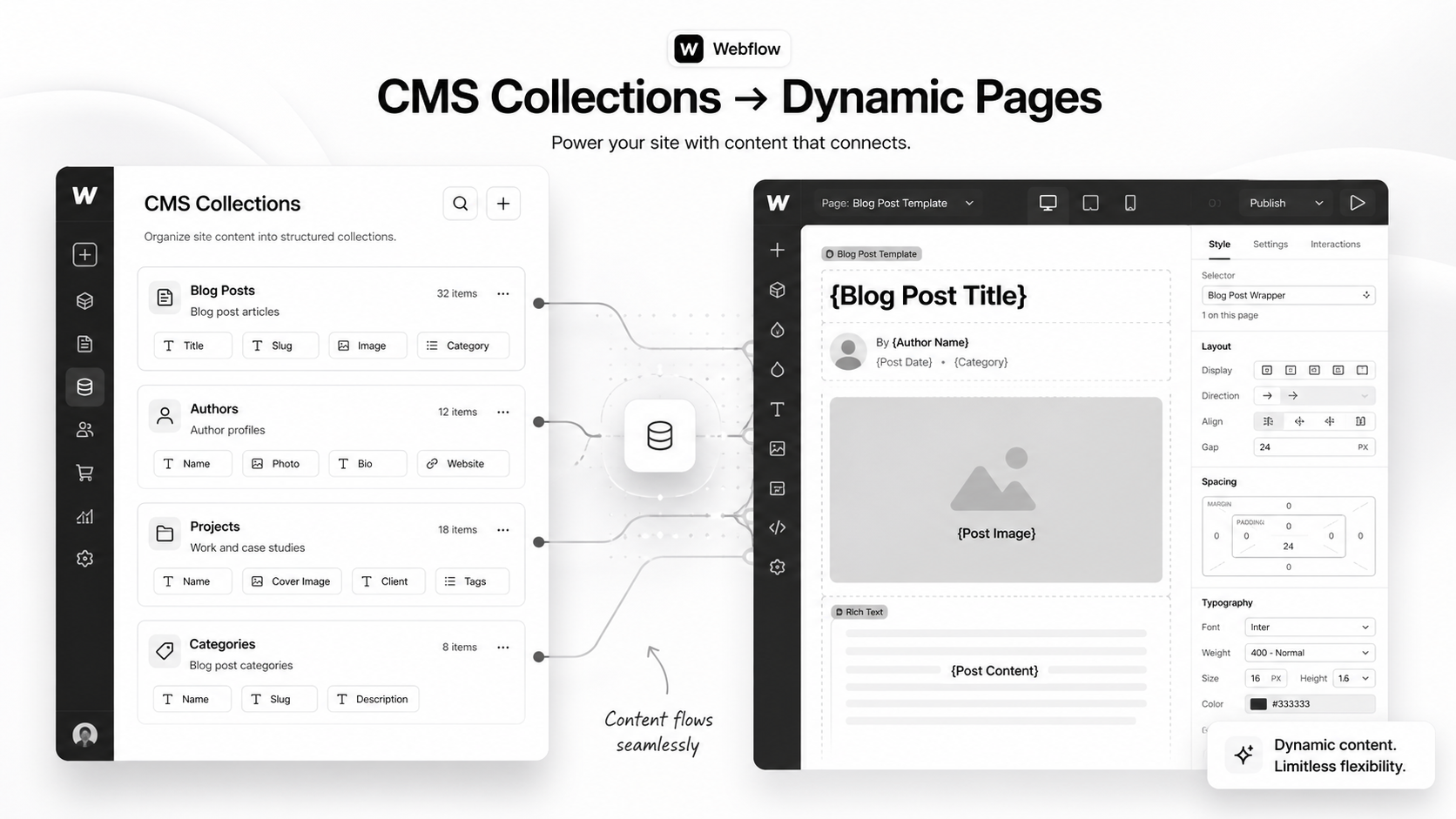
Table of Contents
Most Webflow CMS builds work beautifully — until they don’t. Around 300 to 500 items in, the cracks show: collections that should reference each other don’t, templates fork into copy-paste duplicates, and the marketing team starts asking why they need a developer to add a new content type. By the time the site has 1,500 items, a rebuild is on the roadmap.
None of that has to happen. Webflow CMS scales fine to several thousand items — but only when the architecture is right from day one. This Webflow CMS tutorial walks through the structure, references, and template patterns we use on every Webflow build at our Webflow agency, including for SaaS clients shipping 30+ blog posts a month.
If you’re new to Webflow itself, start with the Webflow development guide. If you’re optimising a CMS that’s already live, pair this with the Webflow SEO checklist for technical hygiene.
What Is Webflow CMS, Really?
Webflow CMS is a content database baked into the Webflow Designer. You define Collections (think: blog posts, case studies, team members, products), each with custom fields, and Webflow generates dynamic pages and lists from those records.
The platform’s marketing positions it as “no-code blogging.” That’s underselling it. A well-architected Webflow CMS is closer to a headless content platform with a visual frontend builder — capable of running multi-language sites, gated resource libraries, and publication-grade content hubs.
What it isn’t: a database for transactional records. CMS is built for editorial content with reasonable update frequency, not for thousands of writes per day.
The four building blocks
- Collections — the content types (Blog Posts, Authors, Categories).
- Fields — the columns inside each collection (title, slug, body, publish date).
- Reference / Multi-Reference fields — the relationships between collections.
- Collection Pages and Collection Lists — the dynamic templates that render the data.
Get those four right, and the rest is design. Get them wrong, and every change becomes a project.
Why Webflow CMS Architecture Matters in 2026
Three reasons your CMS structure decides whether the site compounds or stagnates.
1. Content velocity is now a ranking signal. Google’s helpful-content updates reward sites with ongoing publishing rhythm. If your CMS makes adding a new content type a developer ticket, your team will publish less. Less publishing means slower topical authority.
2. AI search rewards structure. Perplexity, ChatGPT search, and Google’s SGE pull from sites that expose clean structured data. A Webflow CMS with proper reference relationships outputs cleaner JSON-LD and gets cited more often.
3. Editorial UX drives team adoption. A clean Webflow Editor experience — where a marketer can ship a case study without touching the Designer — is the difference between a CMS that gets used and one that gets bypassed via Notion.
How Webflow CMS Architecture Works
The mental model: design your data model first, your pages second. Most Webflow projects do the reverse and pay for it later.
Step 1 — Map your content types before you open Webflow
On paper or in Notion, list every content type the site needs in the next 24 months. For a typical SaaS marketing site:
- Blog Posts
- Authors
- Categories
- Tags
- Customer Stories
- Industries
- Roles (job titles you market to)
- Integrations
- Help / Docs Articles
- Webinars / Events
- Glossary Terms
If you skip this list, you’ll add types reactively — and the CMS will sprawl into duplicate-purpose collections within six months.
Step 2 — Decide on references early
For each content type, decide which other types it relates to. A Blog Post likely references one Author, one Category, multiple Tags, and zero or more Customer Stories.
Reference fields are the single most powerful Webflow CMS feature, and the most under-used. They’re how you build:
- Author archive pages without duplicating bio content per post
- Category and tag landing pages with fully dynamic post lists
- Cross-sells (“Other case studies in this industry”)
- Internal linking that updates automatically when content changes
Step 3 — Set the field types correctly the first time
Changing a field type after content is in the CMS is painful. Plan these carefully:
- Plain Text for SEO titles and meta descriptions (not Rich Text)
- Rich Text only for body content where formatting is needed
- Switch (boolean) for filters like “Featured” or “Members only”
- Option (single-select) for fixed values like content stage or difficulty
- Reference for one-to-one relationships
- Multi-Reference for many-to-many relationships (capped at 5 in some plans — design around it)
Step 4 — Use Collection Pages as templates, not as one-offs
Every collection automatically generates a Collection Page — the template all items render through. Build it once, build it well: hero with dynamic title, dynamic body, related-items section pulled via Multi-Reference, structured data block, FAQ pulled from a nested collection if needed.
Step 5 — Build Collection Lists with filtering, not duplication
If you find yourself building three near-identical pages with different post lists (“All posts”, “Webflow posts”, “Shopify posts”), you’ve drifted into duplication. The right answer: one template page filtered by Category reference, rendered through dynamic routing or query parameters.
Mid-article CTA → Stuck deciding between a template build and a custom CMS architecture? Book a free Webflow CMS architecture call — we’ll map your collections and references in 45 minutes.
Step-by-Step: Build a Scalable Blog CMS in Webflow
A worked example. We’ll build the foundation for a SaaS blog that needs to scale to ~3,000 posts and survive future expansion to docs, glossary, and customer stories.
1. Create the supporting collections first
- Authors — fields: Name (Plain Text), Slug, Photo (Image), Bio (Rich Text), Twitter (Link), LinkedIn (Link)
- Categories — fields: Name, Slug, Description (Plain Text), Hero Image, SEO Title, Meta Description
- Tags — fields: Name, Slug, Description
2. Create the Blog Posts collection
Fields, in this exact order:
- Name (the post title)
- Slug (auto-generated)
- SEO Title (Plain Text, separate from Name)
- Meta Description (Plain Text)
- Excerpt (Plain Text, 160 chars)
- Featured Image (Image)
- Featured Alt Text (Plain Text)
- Body (Rich Text)
- Publish Date (Date)
- Updated Date (Date)
- Author (Reference → Authors)
- Category (Reference → Categories)
- Tags (Multi-Reference → Tags)
- Featured (Switch)
- Reading Time (Number)
That’s 15 fields — comfortably under Webflow’s 30-field limit per collection, with room to grow.
3. Build the Collection Page once
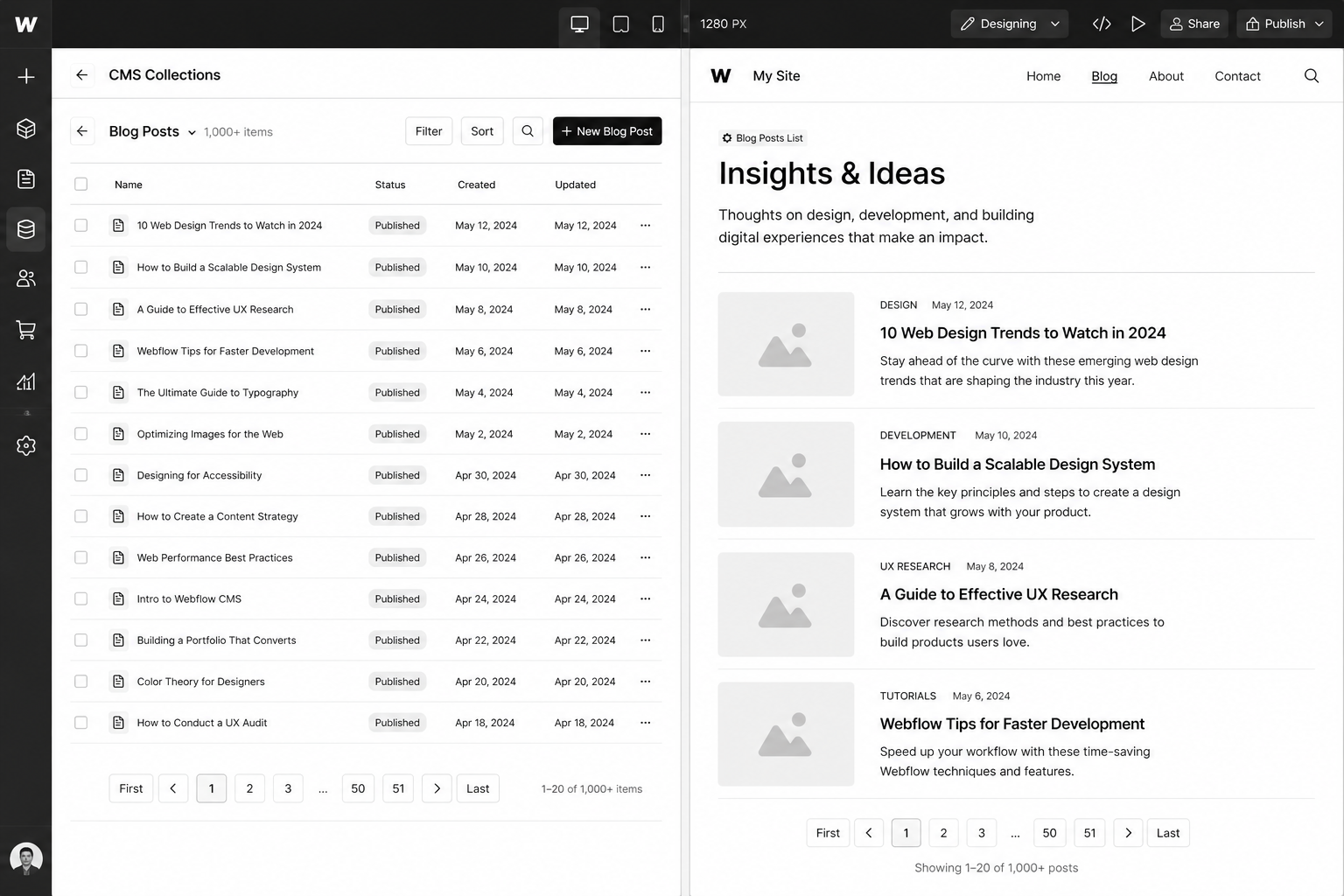
The Blog Post template page should include a hero (dynamic Name + Featured Image + Author photo via reference), the Rich Text body, an Author bio block (also via reference, no duplication), a Related Posts section using Multi-Reference Tags, and structured data (Article + FAQPage when applicable).
4. Build the Blog index with filterable Collection Lists
One Collection List sorted by Publish Date descending. Add filter rules driven by URL parameters or use a third-party filter library if you need client-side filtering.
5. Wire up the Authors and Categories archives
Each gets its own Collection Page template. The Author template includes a list of all posts where Author = current. The Category template does the same.
Now you have an architecture that handles 3,000 posts, 50 authors, 30 categories without rework. Adding “Customer Stories” later means creating one more collection and pointing a Multi-Reference at it.
Best Tools and Add-Ons for Webflow CMS
Webflow ships with strong defaults but the production setups we run for clients usually layer in 2–3 of these:
- Whalesync — two-way sync between Webflow CMS and Airtable / Notion / Google Sheets. Lets non-technical teams manage content in spreadsheets while the site renders through Webflow.
- Finsweet CMS Library — extends native Collection Lists with advanced filtering, infinite scroll, and combine (merging multiple collections into one list).
- PowerImporter — bulk import from spreadsheets, especially useful for migrating from WordPress or HubSpot.
- Memberstack or Webflow Memberships — for gated content. See our Webflow Memberships guide for the trade-offs.
- Jetboost — adds CMS-driven search, favorites, and dynamic load-more.
The principle: don’t add an integration unless it removes a real bottleneck. Each one is another dependency to maintain.
Common Webflow CMS Mistakes (and How to Avoid Them)
- Skipping reference fields and using plain text instead. “Author Name” as plain text means renaming an author requires editing every post. Use References.
- Over-using Rich Text for structural content. Rich Text is great for body copy, terrible for repeatable layout. If hero copy lives in Rich Text, you’ll fight formatting forever.
- Not separating SEO Title from CMS Item Name. Marketers want to A/B test SEO titles without changing the slug or display title. Two fields. Always.
- Building duplicate templates for “different” page types. Three near-identical Collection Pages should be one template + a switch field.
- Ignoring the 5-Multi-Reference cap on lower plans. Plan reference architecture around plan limits or budget for the upgrade.
- Forgetting to set “Updated Date”. Google rewards freshness. A clean update workflow that bumps this field on edits is worth real ranking gains.
Webflow CMS for Multi-Language and Multi-Region Sites
Webflow Localization (released GA in 2024 and matured through 2025) is now production-ready. It lets you ship localised content per locale with proper hreflang tags, region-specific routing, and translated CMS fields.
For UK/USA splits where the language is the same but messaging differs (pricing in GBP vs USD, case study selection, regional compliance language), Localization is the cleanest pattern. The alternative — duplicate sites — is rarely worth the maintenance cost.
FAQ — Webflow CMS
How many CMS items can Webflow handle?
The current cap is 10,000 CMS items per site on Business plans and 20,000 on Enterprise. Practically, sites stay performant up to several thousand items if reference relationships are clean. Past 5,000 items, plan paginated lists carefully and avoid uncached Multi-Reference loops.
Can I migrate WordPress content into Webflow CMS?
Yes. Tools like PowerImporter or Whalesync handle most of the lift. For complex sites, our team runs the migration manually with redirect maps and field mapping — see the WordPress to Webflow migration playbook.
Is Webflow CMS good for SEO?
Yes — better than WordPress out of the box. Clean HTML, fast Core Web Vitals, easy structured data via custom code embeds, and proper canonical / hreflang controls. Pair with the Webflow SEO checklist for the full setup.
Can I use Webflow CMS without a developer?
Once the architecture is built, yes — content editors work entirely in the Webflow Editor. The build itself benefits from a developer or specialist agency. The cost of a botched information architecture exceeds the cost of doing it right the first time.
Does Webflow CMS support multi-language sites?
Yes, via Webflow Localization. Native hreflang, locale-specific routing, and translated fields are all supported. For UK/USA splits with the same language, Localization handles it cleanly without duplicate sites.
How does Webflow CMS pricing work?
CMS is included on all paid Site plans. The CMS plan ($23/mo USD or ~£18/mo GBP at 2026 rates) supports 2,000 items; Business plan ($39/mo USD) supports 10,000. Upgrades are seamless. See the Webflow development cost guide for total project budgets.
Conclusion: Build the CMS Once, Right
Every Webflow CMS rebuild we get hired to fix has the same root cause: the original architecture was designed page-by-page instead of data-model-first. The fix is rarely more design — it’s better information architecture.
If you’re starting a new Webflow site, spend a day on the data model before you open the Designer. If you’re already live and feeling the cracks, an architecture audit usually reveals 70% of the issue is fixable without a rebuild.
Either way, our Webflow team has shipped CMS architectures for SaaS sites publishing 50+ posts a month and B2B brands with 3,000+ items across collections. Book a free Webflow CMS architecture call and we’ll map yours in under an hour.
Download the Webflow CMS Architecture Blueprint — the exact data model and reference graph we use on production SaaS builds.